To access your inpatient records from Hoag Hospital, outpatient services and records from Hoag provider offices including but not limited to:
Imaging
Radiation Oncology
Infusion
Cardiac and Pulmonary Rehab
Hoag for Her
Hoag Medical Group
Hoag Urgent Care
Hoag Concierge Medicine
Hoag Orthopedic Institute
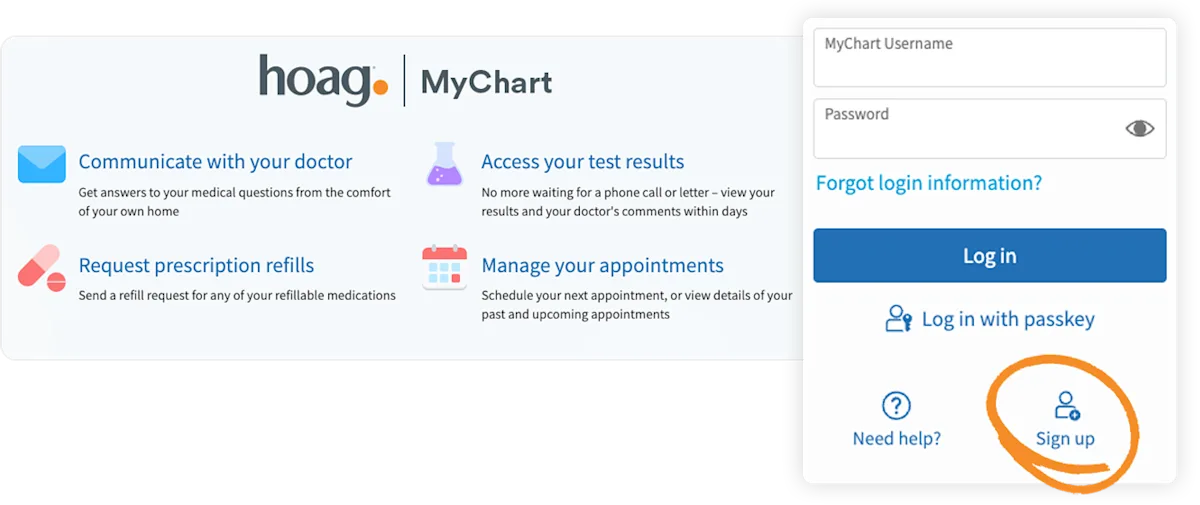
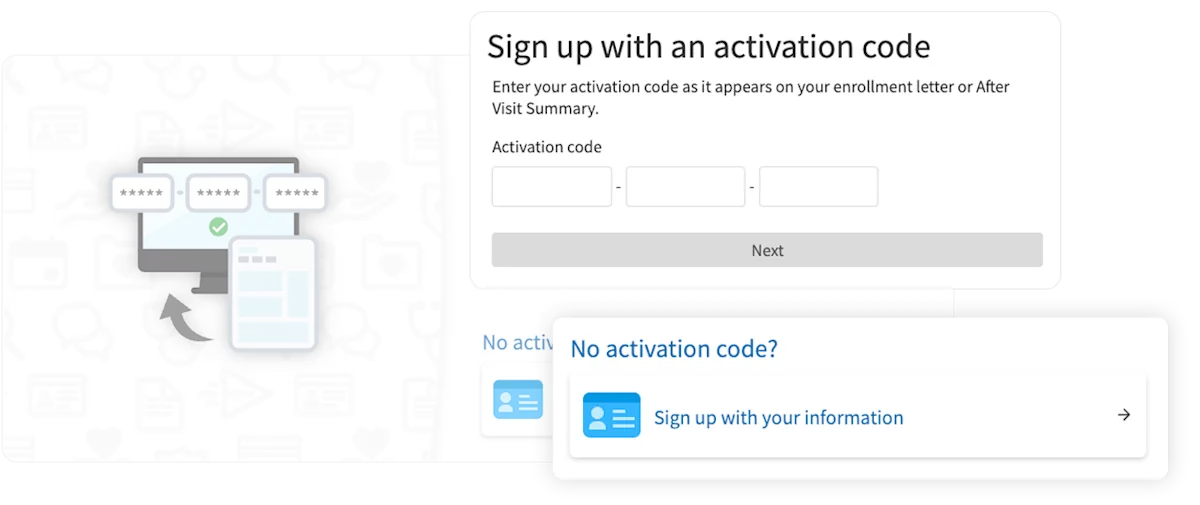
Sign up or log in to your Hoag Connect MyChart® account.
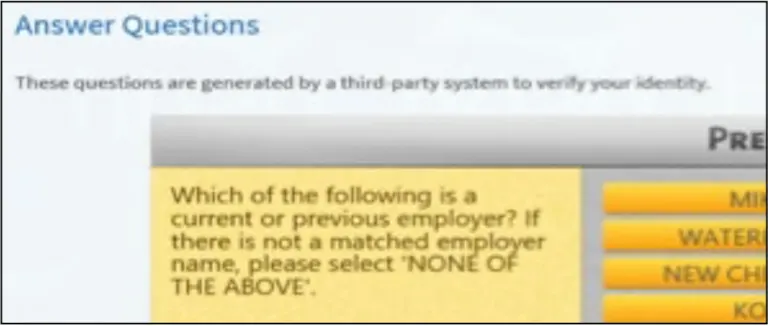
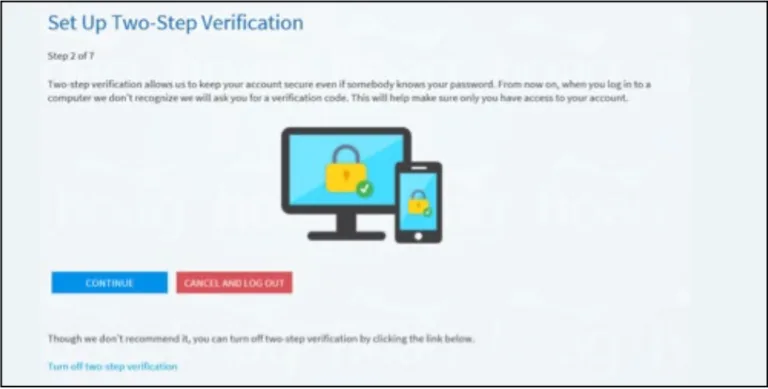
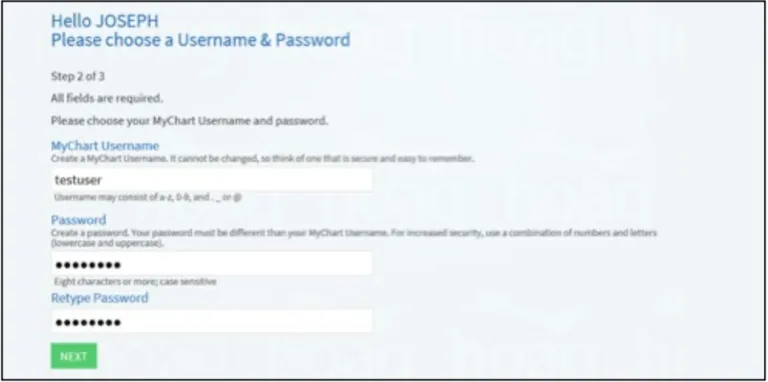
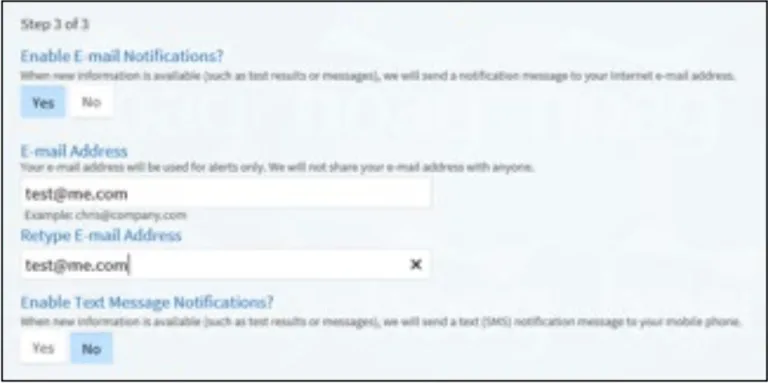
Click here for step-by-step instructions on how to create a Hoag Connect MyChart account.
With Hoag Connect MyChart, you can:
View test results.
Communicate with your provider.
Request prescription refills and manage your appointments—all from the convenience of your laptop or mobile device.
Pay your bills online
Access your family’s records and link accounts. You can check appointments, vaccination records, manage your child’s care and more. Please note, you must be at least 12 years old to use Hoag Connect MyChart.
For the parents/guardians of minor patients:
To access the medical records of a child under the age of 12 in Hoag Connect MyChart, you must first establish your own Hoag Connect MyChart account, and request for MyChart Proxy during your child’s visit at any Hoag location. You can also fill out the Hoag Connect MyChart Proxy Access Form – Minor and submit it to HoagMedicalRecords@hoag.org or drop it off at any Hoag Hospital Medical Records (Newport or Irvine) or Any Hoag Clinic (Urgent Care or Hoag Medical Group).
To access the medical records of a child that is between the ages of 12 to 17, you will need your child’s approval to access their medical records in Hoag Connect MyChart. Your child can provide their approval either by completing and submitting a proxy form or through their own Hoag Connect MyChart account. Your child will need to fill out the Hoag Connect MyChart Proxy Access Form – Minor and submit it to HoagMedicalRecords@hoag.org or drop it off at any Hoag Hospital Medical Records (Newport or Irvine) or Any Hoag Clinic (Urgent Care or Hoag Medical Group).
For representatives of adult patients:
The patient can invite you as a MyChart proxy through their own Hoag Connect MyChart account and share their medical records with you. You may also request for MyChart proxy by downloading and completing the Hoag Connect MyChart Proxy Access Form – Adult and the patient will need to authorize your proxy request, and submit it to HoagMedicalRecords@hoag.org or drop it off at any Hoag Hospital Medical Records (Newport or Irvine) or any Hoag Clinic (Urgent Care or Hoag Medical Group).
If your primary care physician is with a different organization, please continue to access your non-Hoag related records through their existing systems/portals. You may still receive the option to activate a Hoag Connect MyChart account if you’ve been seen at a Hoag facility in the past.
For parents/guardians or legal representatives of patient lacking capacity:
To access the medical records of patients lacking capacity, you must first establish your own Hoag Connect MyChart account, and request for MyChart Proxy by filling out the Hoag Connect MyChart Proxy Access Patients Lacking Capacity form during the patient’s visit at any Hoag location. The patient’s PCP or other care team member must sign the form to verify that the patient is lacking capacity.
For summary of Hoag Connect MyChart Features and Visibility for Parents/Legal Guardians and/or Legal Representatives, click here.
Your health information and privacy are protected
Only you, your provider and your health care team are permitted to view the information sent through MyChart. We use the latest security practices and safeguards to protect your health care information. MyChart is password-protected and delivered via an encrypted connection. To learn more about privacy, visit the Hoag Privacy Policy.
If you need help with Hoag Connect MyChart, call (949) 688-2772.
New Electronic Medical Records Request
Patient Requests
Datavant, formerly known as CIOX, provides Release of Information services for Hoag. Use the link below to request copies of your medical records to be processed and delivered electronically.
Online Patient Request Form
Provider Requests
Datavant, formerly known as CIOX, provides Release of Information services for Hoag. Use the link below to request copies of your medical records to be processed and delivered electronically.
Online Provider Request Form
Third Party Requests
ChartSwap, a Datavant platform, provides Release of Information services for attorneys, insurance, and copy service requestors to request copies of medical records to be processed and delivered electronically.
Online Third-Party Requests Platform
Other Ways to Request Your Medical Records
To obtain medical records copies, a signed authorization is required from the patient or authorized representative*.
*Authorized representative includes parent of a minor patient (under 18 years of age), legal guardian, or is named in the patient’s Advance Health Care Directive as agent to make health care decisions. Proof of representation will be required before records will be released.
Please download, print, complete and sign one of the following authorization forms:
Here are step-by-step instructions to complete the request for records.
If you are unable to download and print the authorization, a written request is acceptable. There is specific information that is required on all requests.
Please forward the completed request in one of the following ways:
MAIL: Hoag Memorial Hospital Presbyterian
Attn: Medical Records/Release of Information
One Hoag Drive
Newport Beach, CA 92658
FAX: Medical Records/Release of Information (949) 764-8237
EMAIL: HoagMedicalRecords@hoag.org
PHONE: (949) 764-8326
Hours of Operation: Monday through Friday, 8 AM until 5 PM
Hoag charges patients a reasonable fee for copies of medical records. Patient requests that are 25 pages or less will remain free of charge. A fee schedule can be provided upon request.
Request to Amend Protected Health Information
The patient’s medical record serves to record the care the patient receives and provides communication among healthcare providers regarding their diagnosis and necessary treatments. Should you believe any information in your medical records is inaccurate or incomplete, you have the option to request corrections (amendment) or additions (addendum), which you can do as long as Hoag retains the information.
To request to amend your protected health information, please download, print, complete, and sign the Request to Amend Protected Health Information.
Here are step-by-step instructions to complete the request form. Once completed, you may mail or email to:
Mail:
Hoag Memorial Hospital Presbyterian
Attn: Medical Records/Health Information
One Hoag Drive, PO Box 6100, Newport Beach, CA 92658-6100
E-mail: hoagmedicalrecords@hoag.org
Or in person to any of the following:
Hoag Memorial Hospital Presbyterian Medical Records (Newport Beach – East Tower)
One Hoag Drive, Newport Beach, CA 92663
Hoag Memorial Hospital Presbyterian Medical Records (Irvine)
16200 Sand Canyon Ave., Irvine, CA 92618
Any Hoag Clinic (Urgent Care or Hoag Medical Group)
Health Information Exchange (HIE) at Hoag
What is HIE?
Health Information Exchange (HIE) allows healthcare professionals to access and share your information securely and efficiently for purposes of treatment and care coordination. Making patient records readily available through the health exchange network helps healthcare professionals provide the proper care the patient needs, no matter where they receive care.
Hoag currently participates in the following HIE:
Epic’s CareEverywhere, a widely used HIE, allows your Hoag provider to query other hospitals and clinical systems that also use and integrate with Epic.
What does this mean to you as a Hoag Patient?
By default, Hoag patients are automatically enrolled in Hoag Epic’s CareEverywhere Health Information Exchange to securely share their vital health data with doctors and other healthcare personnel, regardless of where they receive care. The use and sharing of patient’s health information for treatment and care coordination purposes through a health exchange network is permitted under the HIPAA Privacy Rule.
At a minimum, information shared with other participants within the health information exchange includes ongoing health conditions, medications, and allergies. Your lab/procedure results and physician notes can be shared with some participants but not all. Sensitive health information like psychotherapy notes, substance use treatment, and genetic testing will not be disclosed without the patient’s prior authorization.
Your Rights and Choices as a Hoag Patient:
If you or your representative wishes to opt-out of the HIE, you can do so anytime without affecting your access to care at Hoag. Opting out prevents your health information from being shared across the health information exchange, but it does not prevent Hoag from using or disclosing your information for reasons as permitted under law.
Once opted out, your Hoag records will no longer be available to participants in health information exchange.
If you change your mind, you can also revoke the opt-out by completing Hoag’s HIE opt-in form. This will renew your HIE participation.
How to Opt-out or Opt-in of Epic’s CareEverywhere:
To Opt-out from HIE, print out and complete the Patient Opt-Out Request Form.
Once completed, please forward the completed form in one of the following ways:
Mail: Hoag Memorial Hospital Presbyterian
Attn: Medical Records/Release of Information
One Hoag Drive
Newport Beach, CA 92658
Fax: Medical Records/Release of Information
949-764-8237 Email: HoagMedicalRecords@hoag.org
If you previously opted out of HIE and would like to opt in, print out and complete the Patient Opt-In Request Form.
Once completed, please forward the completed form using one of the following ways mentioned above.
Please allow 3-5 business days for processing a completed opt-out or opt-in request.